The torrent client Deluge is reasonably well known, but what you may not know is that it can be run as a daemon (deluged) and when running allows you to use deluge-console and add torrents via command line.
Why would one want to do such a thing you may ask?
Personally I prefer the simplicity of being able to do this via command line as typing a few commands on a keyboard and pasting a link is more comfortable and more efficient time wise.
Also for my Android devices once configured, all I need to do is open an app, tap to connect via SSH, type in my public key password and from there it literally takes two commands with a pasted URL to ensure the new GoT episode is ready for me when I walk through the door.
Configuring SSH:
You will need to set up SSH if you haven’t already. Instructions on how to do so can be found here.
You will also need to go into your router settings and enable port forwarding to your computer’s internal ip address and ssh port. This process will vary from router to router, so look up the documentation for your specific model.
For this you will also need to know your computer’s ip address.
To find out your internal ip address type in terminal:
- ifconfig
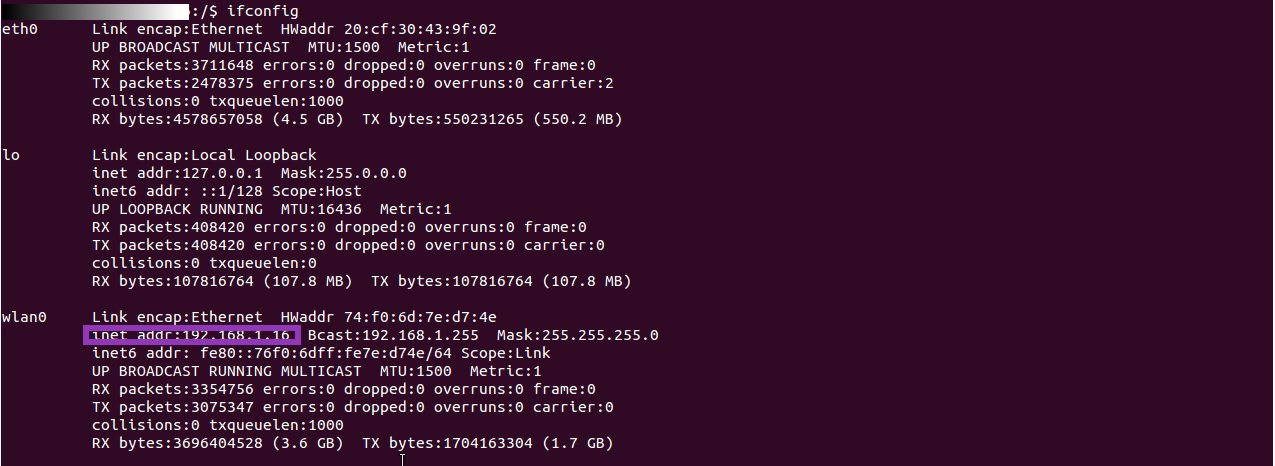
The area where highlighted indicates indicates the ip addressed to my wireless NIC. If you are connected by ethernet the ip address will show up under eth0 up the top.

When you log into your router to configure port forwarding, this is the ip address you will use. The default port for SSH is 22. Be sure to save you changes.
Next open up google and type in “ip address”. It will display your public ip address – write this down.
Once that’s all up and running the next step is to install deluge.
Installing Client:
Install the packages in terminal:
- sudo apt-get install deluge deluged deluge-console
To configure the client to your preferences you can do so using the normal GUI deluge client. Close afterwards.
Open up terminal again to start the daemon.
Run the command:
- deluged
Now when you next open up Deluge you be given a prompt requiring you to run in ‘classic mode’ – click apply and you will see this screen:
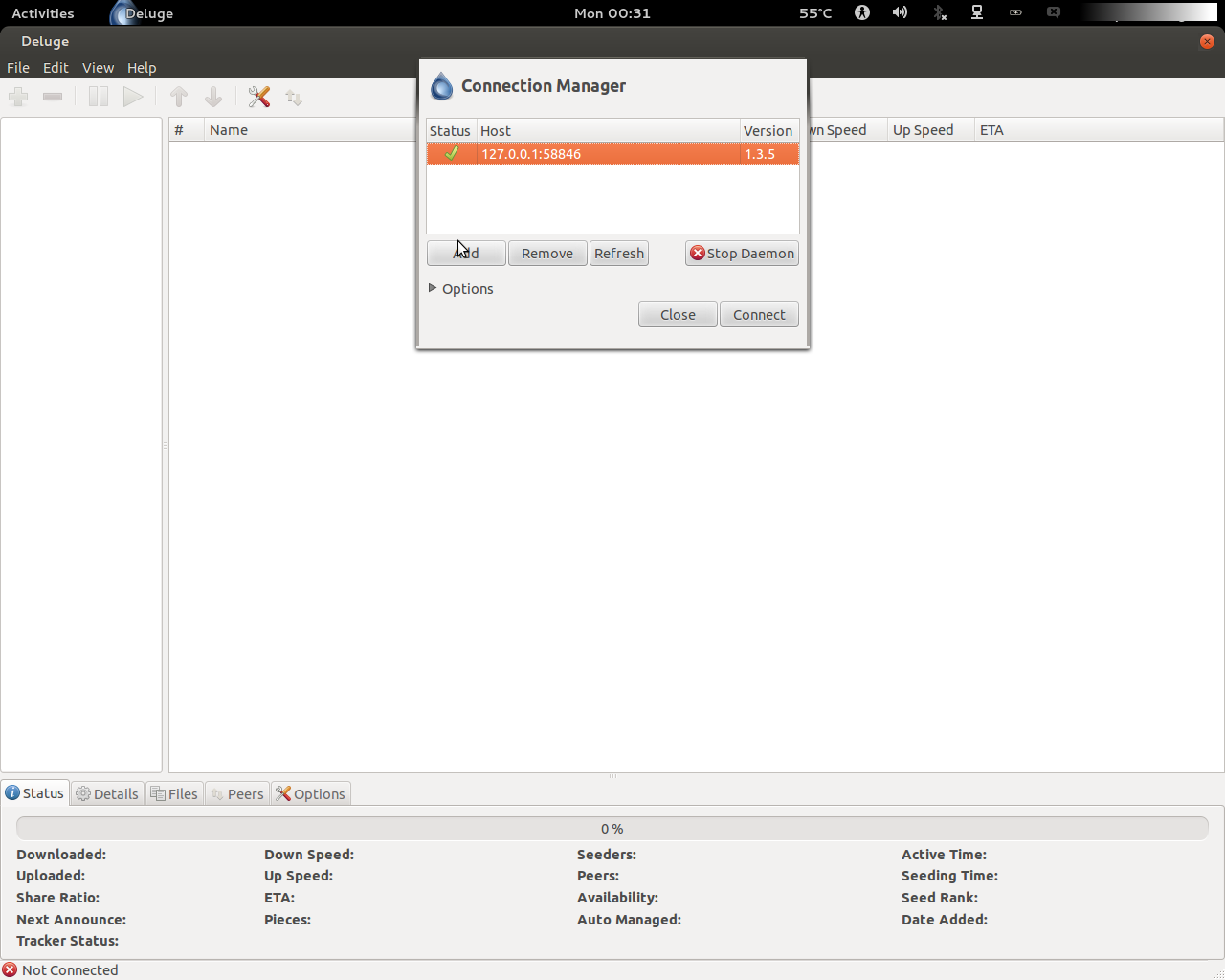
Click Connect and note that in the options tab you can configure it to connect automatically on start up.
Managing torrents remotely from another computer:
Both Linux and OSX allow you to use SSH from command line, however if you are using a Windows machine to connect remotely you will need to install the Putty SSH Client which you can get here.
Run the command:
- ssh <user>@<public ip address> -p <port>
Go through the authentication process, by default it just requires your user password unless you have set up RSA key authentication.
You should now be logged in to your account at home\wherever, enter the command:
- deluge-console
If you receive an error message saying that you need to run the daemon, you can do this like previously by running ‘deluged’ again.
Once you have deluge-console running you can view a list of commands by typing ‘help’.
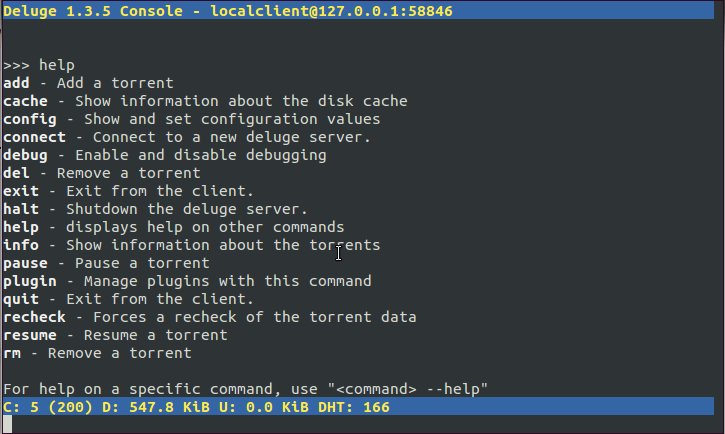
Adding a new torrent is as simple as looking up the torrent, copying the URL of the torrent file or magnet link, and pasting the link after the ‘add’ command as seen below.

To check on the download progress you can use the ‘info’ command to display active torrents.
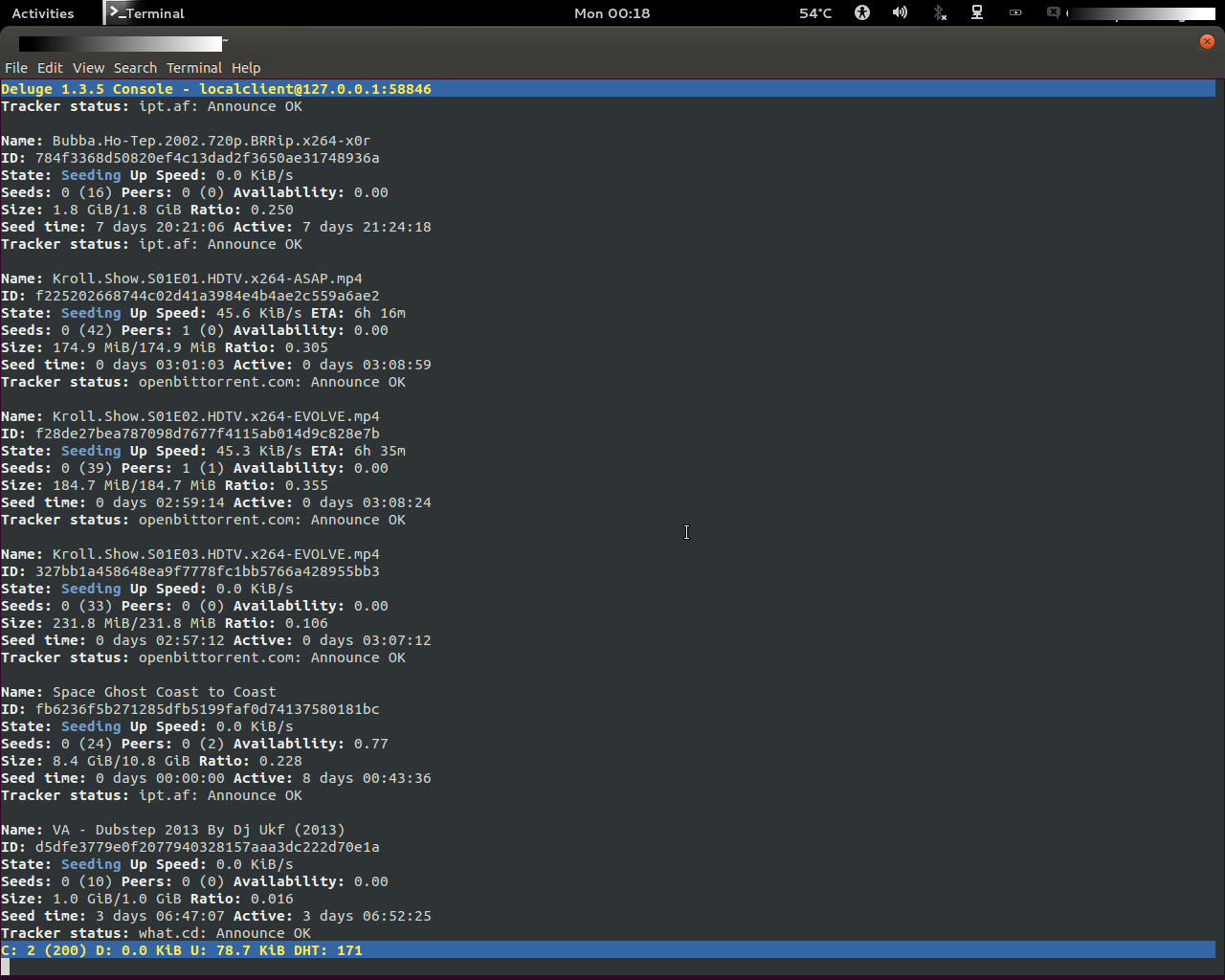
Now you can quit and close the SSH session by simply typing exit, knowing Game of Thrones is going to be ready for you when you get home from work.
Connecting from Android device:
Simply download an SSH client for your device such as ConnectBot by entering <user>@<external ip>:<port> in the quick connect box seen in the bottom of the picture.
Once connected it will save your previous settings so next time you just need to tap to connect.
You also have the option of setting up public key verification for added security.

Connecting from iPhone, iPad:
Download whatever the f*** the main SSH client is for you weirdos and do exactly the same ;).
 264nmtechblog